Setup guide
How to set up IPTV is easier when you start from a screen you already own. CompareIPTV sends an M3U link or Xtream codes on WhatsApp after you order, or after you ask for a free trial. You paste those details into a player app. The channel list usually loads within a minute or two.
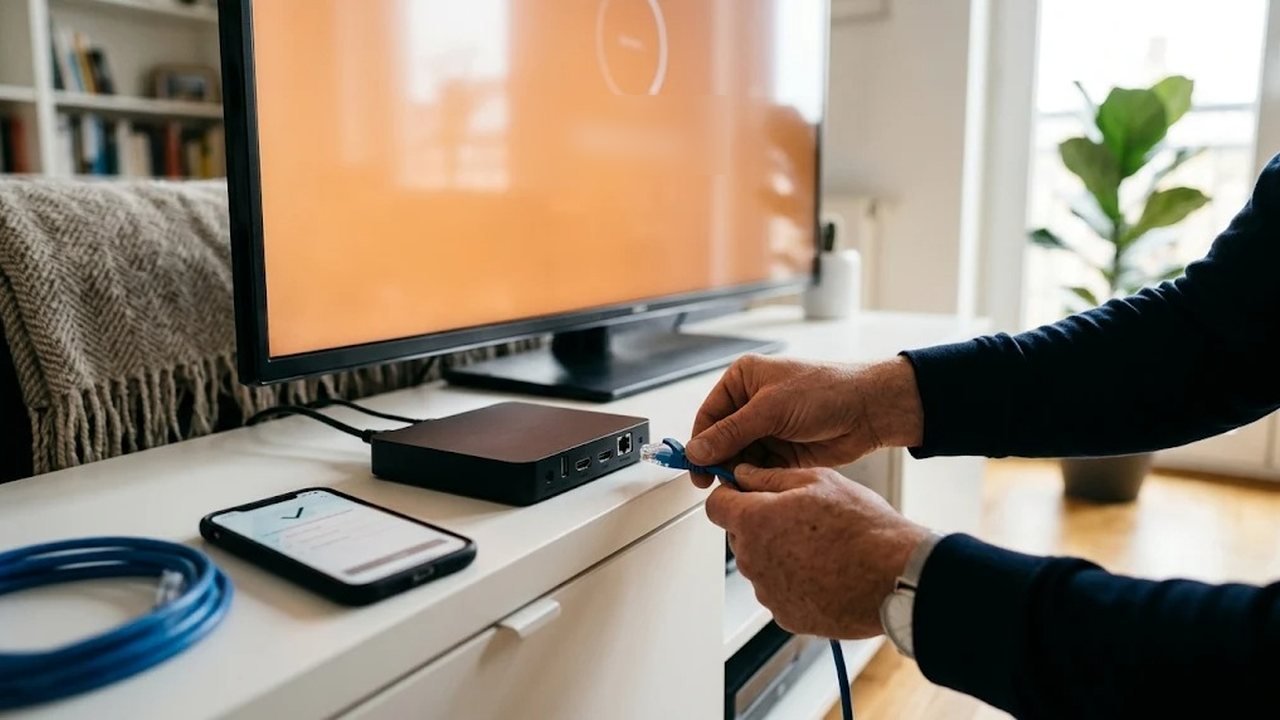
In fact, you do not need a technical background. However, a little preparation helps. So keep the WhatsApp message open on your phone. Then set up IPTV on the TV, stick or phone you plan to watch on most nights. A cable from the router, or strong Wi-Fi near it, gives you a fair test.
How to set up IPTV in three steps
- Order a plan on the pricing page, or ask for a free trial on WhatsApp. Your login arrives in that chat.
- Install a player. On Android and Fire TV, our 8K Player app is free. On other screens, install a player that accepts an M3U link or Xtream codes.
- Add the login and press play. Enter the username, password and host, or paste the M3U link exactly as we sent it.
When you set up IPTV for the first time, prefer a cable from the router, or stay close to the Wi-Fi point. Then play one live channel for a few minutes before you judge the whole lineup.
Two login styles you can use to set up IPTV
In fact, you will receive one of two login styles. An M3U link is one web address that holds the playlist. Xtream codes split the same access into three fields. Those fields are the server URL, the username and the password. Type each field exactly, because a stray space or a wrong capital letter blocks the login.
In addition, some MAG boxes need a portal address instead of a phone app. If your box asks for that, request it in the same WhatsApp chat. Also, do not post the login in a public group. Treat it like a password, and keep it inside your household.
The server URL sometimes includes a port number. So copy that number too. If a photo of the message cuts off the last digits, ask us to resend it. For a plain explanation of the service itself, read what this kind of service means. The host-field article covers the server line in more detail.
Before you open the tabs, check three things. The device is on the same home network you will use at night. The player is the one you plan to keep. And the WhatsApp message is still complete, including the port. Once those three are true, the taps below set up IPTV in a few minutes.
Device tabs to set up IPTV, with screenshots
Choose your device in the tabs below. Each step includes a screenshot of the real screen. An orange frame marks where to tap or click. The taps differ by brand. The idea stays the same, however. Either way, you set up IPTV by installing a player and entering the login we sent.
Fire TV Stick IPTV setup
First, install the free Downloader app. Then let it install our 8K Player VIP+ and log in with the details we send you.
Search for Downloader
First, open Find › Search on the Fire TV home screen. Then type downloader and select the suggestion.
Install the Downloader app
Next, open Downloader by AFTVnews and select Download. The app is free, and it comes from the Amazon Appstore.
Turn on developer mode
After that, go to Settings › My Fire TV › About. Highlight your device name and press select 7 times, until the message “You are now a developer” appears.
If it already says you are a developer, then simply go to the next step.
Open Developer Options
Now press Back once. As a result, Developer Options shows under My Fire TV. Open it and select Install unknown apps.
Allow Downloader to install apps
Then switch Downloader to ON. This only lets Downloader install the player file, and you can also switch it off again after setup.
Enter the code 1388878
Next, open Downloader and select the box on the Home tab. Then type
1388878and select Go, because this code opens the 8K Player VIP+ file.Wait for the download
Downloader then shows the progress while the file downloads. On a normal connection, this usually takes under a minute.
Install 8K Player VIP+
After the download, the installer opens. Then select Install.
Open the app
Afterwards, select Open. In addition, you can choose Delete in Downloader to free up space, and the app stays installed.
Add your playlist
First, select +Add Playlist on the Playlists screen of 8K Player VIP+.
Log in with your CompareIPTV details
Keep the server on 8K PRO and type any playlist name. Then enter the username and password we sent you on WhatsApp. Finally, select +ADD PLAYLIST.
Usernames and passwords are case-sensitive. Also, a space at the end stops the login.
Start watching
Channels, movies and series then load in a minute or two. Next, open Live, choose a category and select a channel. The program guide also shows what is on now and next.
Android TV and Google TV IPTV setup
These steps also work on Google TV, Android TV boxes and TVs with Android built in.
Install Downloader from Google Play
First, open Google Play and search for Downloader by AFTVnews. Then select Install.
Allow Downloader to install apps
Next, go to Settings › Apps › Security & restrictions › Unknown sources. Then switch Downloader on.
Enter the code 1388878
After that, open Downloader and type
1388878in the box on the Home tab. Finally, select Go.Install 8K Player VIP+
Once the download finishes, select Install. Then select Open.
Log in with your CompareIPTV details
Keep the server on 8K PRO and type any playlist name. Then enter the username and password we sent you on WhatsApp. Finally, select +ADD PLAYLIST.
Usernames and passwords are case-sensitive. Also, a space at the end stops the login.
Login fails? Switch the server
Some internet providers block the default route. In that case, open the server menu and pick 8K PRO CLOUD or 8K PRO CLOUD PRO. Then add the playlist again with the same details.
Start watching
Channels, movies and series then load in a minute or two. Next, open Live, choose a category and select a channel. The program guide also shows what is on now and next.
Samsung and LG Smart TV IPTV setup
Samsung (Tizen) and LG (webOS) TVs cannot install Android files. Instead, you use IBO Player Pro from the TV’s own app store, and then we activate it for you.
Samsung: install IBO Player Pro
First, press Home and open Apps. Then search for IBO Player Pro and select Install.
LG: install IBO Player Pro
On LG, open the LG Content Store instead. Then search for IBO Player Pro and select Install.
Send us the MAC address and device key
Next, open the app. It shows a Mac Address and a Device Key, so send a photo of this screen on WhatsApp. After that, we add your playlist to the app.
IBO Player Pro may ask for its own activation after its trial. However, that fee goes to the app developer, not to us.
Reload and start watching
Once we confirm, restart the app. Your playlist then loads automatically, so select LIVE TV to begin.
iPhone, iPad and Apple TV setup
On Apple devices, you use a free player from the App Store. Then you log in with Xtream codes.
Get the free player
First, open the free player in the App Store, the same link as our Download for iPhone / iPad button. Then tap GET.
Log in with Xtream codes
Next, open the app and choose Login with Xtream Codes API. Then enter any name, your username, your password and the server URL we sent you. Finally, tap ADD USER.
Open Live TV
Now tap LIVE TV to watch channels. Movies and Series also hold the on-demand library.
Android phone and tablet setup
First, download 8K Player VIP+ straight to your phone or tablet. Then log in with your details.
Download the app
First, open the 8K Player VIP+ download on your phone, the same link as our Download for Android / Firestick button. When Chrome warns about the file type, tap Download anyway.
Allow Chrome to install it
If Android asks, open the settings link. Then switch on Allow from this source for Chrome.
Install the app
After that, go back and tap Install. Finally, tap Open.
Log in with your CompareIPTV details
Keep the server on 8K PRO and type any playlist name. Then enter the username and password we sent you on WhatsApp. Finally, select +ADD PLAYLIST.
Usernames and passwords are case-sensitive. Also, a space at the end stops the login.
Start watching
Channels, movies and series then load in a minute or two. Next, open Live, choose a category and select a channel. The program guide also shows what is on now and next.
Windows and Mac setup
On a Windows PC you use IPTV Smarters Pro, and on a Mac you use Smarters Player Lite. Both are free, and you log in with the same Xtream codes as on the TV.
Download IPTV Smarters Pro
First, open IPTV Smarters Pro on Uptodown on your Windows PC. Then select the blue Obtenir la dernière version button, which means “Get the latest version”.
Open the installer
The download then starts by itself after a few seconds. Once it finishes, select Open file in your browser’s downloads list.
Allow it to run
If Windows shows “Windows protected your PC”, select More info first. Then select Run anyway, and IPTV Smarters Pro opens as soon as it has installed.
Log in with Xtream codes
Next, choose Login with Xtream Codes API. Then type any name, your username, your password and the server URL we sent you. Finally, select ADD USER.
Open Live TV
After a short load, select LIVE TV to watch channels. In addition, Movies and Series hold the on-demand library.
On a Mac: get Smarters Player Lite
On a Mac, open the Mac App Store and search for smarters player lite. Then switch the results to iPhone & iPad Apps and select GET.
This works on Macs with an Apple M1 chip or newer and macOS 12.5 or later. On an older Intel Mac, message us and we will suggest another player.
Log in on the Mac
Then open Smarters Player Lite, enter the same details and select ADD USER. Finally, choose LIVE to start watching.
MAG box setup
MAG boxes use a portal link, so we tie it to your box’s MAC address first.
Send us your MAC address
First, find the MAC address under Settings › Device info or on the sticker under the box. Then send it to us on WhatsApp. After that, we link it to your plan and reply with your portal link.
Open the server settings
Next, press SETUP on the remote and open Servers.
Enter the portal link
Then open Portals and type any name for Portal 1. After that, paste the portal link we sent into Portal 1 URL. Finally, press OK to save and reboot the box.
How to set up IPTV when a login fails
Sometimes the first try to set up IPTV fails even when you follow each line. Usually one small mismatch is the cause. Compare your details with the WhatsApp message, character by character. Also make sure the server URL includes the port if we sent one.
Still stuck after that? Send a screenshot on WhatsApp, or use the contact page. Tell us the device, the player and the error words. That lets us skip steps you already tried.
A blank program guide after you set up IPTV
Open the player settings and refresh the guide. Some players need a few minutes to download seven days of listings. Also check the device clock and the time zone. Otherwise, shows can appear at the wrong hour. On supported channels, catch-up can replay a recent show from that guide once the listings load.
Buffering during evening hours
First, restart the router, the device and the player. Next, try a second channel. If only one stream struggles, it may be under short maintenance. If every channel buffers, however, run a speed test. Then move the device closer to the router, or connect it by cable.
As a result, you learn whether the home network is the limit. A full HD stream wants a steady connection, and 4K needs more. Test at the hour you actually watch, because daytime can look fine while evening traffic does not. For a practical checklist, read how to judge picture quality.
How to set up IPTV on a second screen at home
Your plan covers the number of screens you chose at checkout, from one to three. To set up IPTV on a second TV, use the same login, as long as you stay within that count. Playing on more screens at the same time can stop a stream. Instead of sharing one login outside the home, ask us about adding a screen.
The 12-month length discounts extra connections. Choosing two devices means 25% off the extra connection. Choosing three devices means 50% off the extra connections. The figures sit on the pricing page linked above. After the list loads, mark a few favorites so the next night starts faster.
A news channel, a sports package and a kids’ group make a simple first pass. Then you are not scrolling the full catalog every evening. Favorites stay on that device until you clear them.
More help to set up IPTV on one screen
Need more depth for a single device? The Fire TV Stick walkthrough stays on that stick. The player comparison helps you choose an app that accepts your login. Our buyer guides collect the longer articles, including safety notes and what to check in a trial.
Needing a hand to set up IPTV is not a refund reason by itself. We walk through the steps at no cost. The refund policy covers a genuine service issue that support cannot fix, and only within 24 hours of payment. A change of mind does not qualify, because the charge does not repeat.
You are not on your own after the first channel plays. We answer on WhatsApp every day. Share the device, the app and the error in the words you see. Once playback looks right, keep the trial going until you are ready to pick a length. When you want a person beside you for how to set up IPTV, send a message and we will walk the next tap with you.
Ready to test CompareIPTV on your own TV?
Start with a free WhatsApp trial, then compare our IPTV plan lengths and choose the one that matches how your household watches.